 Search Tips
How to program a system from a bundle file
This article shows you how to program a LiNX system with a bundle file using the LiNX Access iOS tool.
You may not be able to use the LiNX Access iOS tool for all bundle file operations. Some LiNX power modules (those with serial numbers prior to F17119xxx) do not support bundle files that contain configurations. If this is the case in your system, use the LiNX Access PC tool instead.
-
Open the LiNX Access iOS tool.
-
Connect to a LiNX system (see here).
-
Switch the iOS tool to file context (tap the context switch to toggle between connection context and file context)

The Load From File screen displays the program files at the top and bundle files underneath.
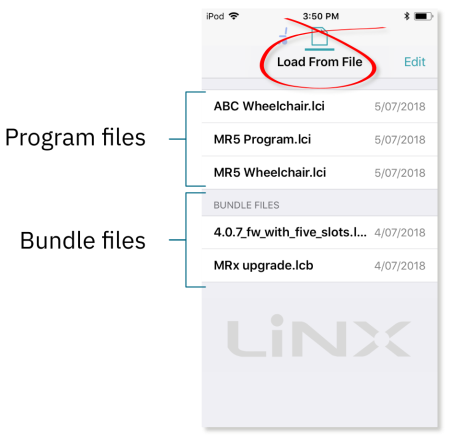
4. Tap on the bundle file (*.lcb) that you want to write to the wheelchair — the contents of the bundle file will be displayed with configurations at the top, and module firmware below.
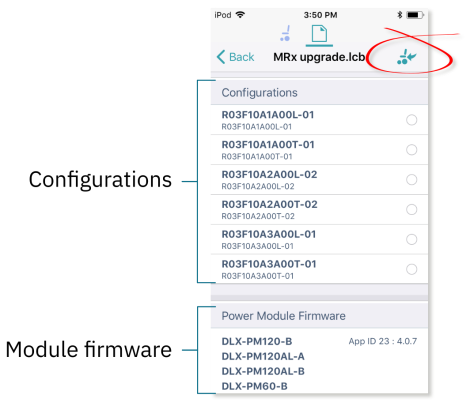
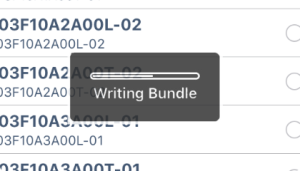
5. Tap on the Write to Chair icon ( ) at the top-right of the screen — the bundle file will be written to the connected system. As the file is written, the Writing Bundle progress bar is displayed.
If your system is one that does not support bundle files with configurations, when you tap on the Write to Chair icon, the following warning will be displayed and you will not be able to continue:
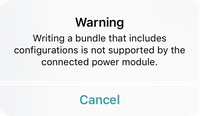
If you see this message, then you will need to use the LiNX Access PC tool instead to write your bundle file to the system.
6. When the progress bar disappears from the screen, tap on the Done button (top left screen) — the tool restarts the system and then automatically reconnects to it. At this point, the configuration files will be located in the configuration store.
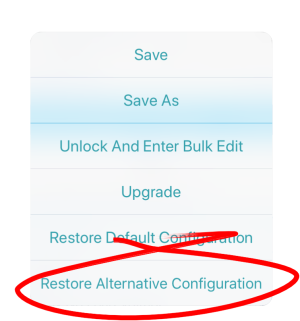
7. To view and select a configuration, tap on the Application menu button at the top of the screen and then select Restore Alternative Configuration — the Chair Configs screen will open.
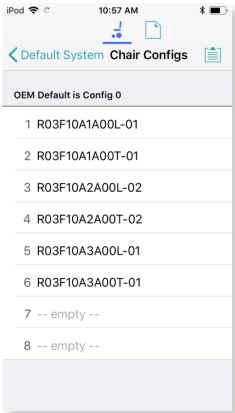
8. Tap on one of the chair configurations from the list to make your chosen configuration the active configuration. At this point, a warning will be displayed telling you that if you proceed, then the “selected configuration will become the active configuration“. Tap on Yes to continue.